

So if you're anything like me, you've probably got Docker Compose stacks scattered across a handful of different machines. Maybe a server here, a VM there, and you're just SSHing into each one to manage things from the terminal. And honestly, that works. I've been doing it for a while now. But the problem is that updates start slipping through your fingers. You don't have a great way to monitor everything across all those different systems at a glance. That's where Dockhand comes in.
Dockhand is a modern, powerful Docker management platform that's free for home labs and ready for enterprise. From a surface level, it's an alternative to something like Portainer, which is a tool I love, but I haven't really found myself using it much anymore. Dockhand caught my eye though, and after spending some time with it, I'm genuinely impressed. So let's dive into how I got it set up, connected multiple environments, and why I think it's worth checking out.
Getting Started
For this setup, I'm installing Dockhand on a Fedora desktop that I'm currently using as my LLM server. It's got a 3090 in it, a bunch of Docker stuff already running, so it's a great place to start.
On their website under the home lab section, you just hit "Get Started for Free" and you've got a few options. You can do a simple docker run command, a Docker Compose setup, or a Compose stack with PostgreSQL if you want to use that instead of SQLite. For me, I don't see a need to run Postgres here, I'm not storing a ton of data. So the basic Compose route is the way to go.
I already had my Docker stuff organized into directories on this server, things like my automation stack with n8n, Open WebUI, Ollama, and Postgres, plus a ZeroByte stack. So I just made a new directory for Dockhand and dropped in a compose file:
services:
  dockhand:
    image: fnsys/dockhand:latest
    container_name: dockhand
    restart: unless-stopped
    ports:
      - "3000:3000"
    volumes:
      - /var/run/docker.sock:/var/run/docker.sock
      - ./dockhand-data:/app/data
      - /home/brandon:/home/brandon
Now, a couple of things to note here. First, you're exposing the Docker socket because Dockhand needs that to actually manage everything for you. Second, and this is the part I want to highlight, I added my home directory as an additional volume mount. This is important because that's where all my existing Docker Compose stacks live, and I want Dockhand to be able to see and import them. You'll see why that matters in just a second.
Then just docker compose up -d and we're good to go. Head over to your server's IP on port 3000 and there we are, we're in Dockhand.
Setting Up Your First Environment
The first thing you'll want to do is configure your local environment. Head to Settings, then Environments, and add a new one. I called mine "Fedora Local" and pointed it at the Docker socket, which is the default connection type for managing containers on the same machine Dockhand is running on.

You can also set a public IP here (I used my local IP), which makes port badges on your containers clickable. So if something's running on port 8080, you can just click it to open it right in your browser. It's just nice.
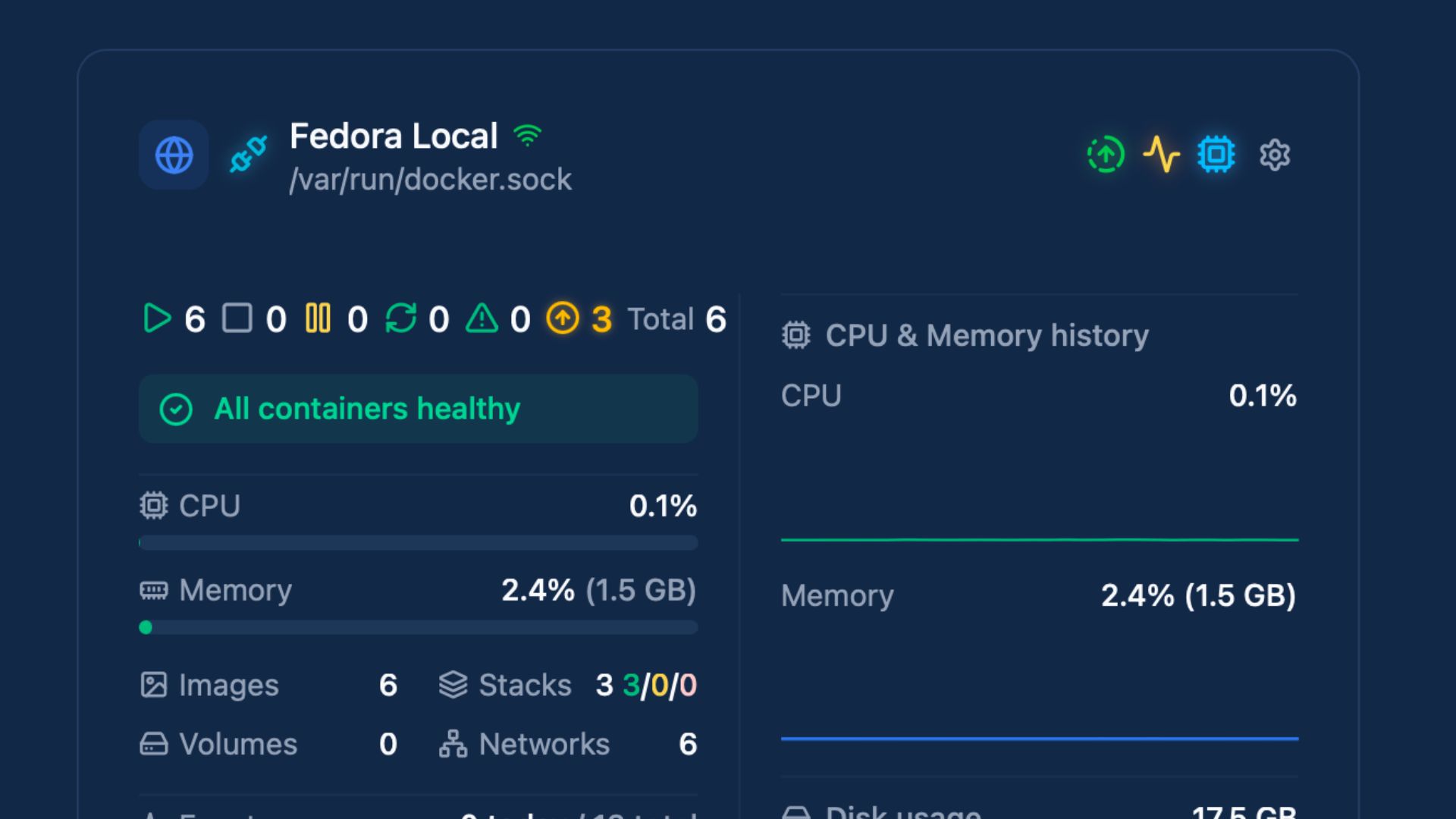
And just like that, the dashboard lights up. I can see my Fedora Local environment with all the running containers. Ollama, Postgres, Open WebUI, ZeroByte, and Dockhand itself.

Container Management
If you're familiar with Portainer, a lot of this will feel pretty natural. You've got all the basics: start, pause, restart, view details, browse files, jump into logs, open a terminal session, and delete containers.
The file browser is super cool. Pick any running container and you can browse its entire filesystem right from the web UI. You can create files, upload files, download things. It's real nice for quick debugging without having to docker exec into everything.
The logs viewer streams in real time with full ANSI color support, and you've got options to download them, copy them, change the font size, toggle auto-scroll, all that good stuff. Same idea with the terminal, you can pick your shell (bash, sh, zsh) and you're connected.

But here's the big one for me: checking for updates. There's a button right there at the top to check for updates across all your containers. When I clicked it, I could see a few of my images had newer versions available. Updating is as simple as clicking the update button on the one you want. It pulls the new image and restarts the container. And there we go, it's done. That little update notification disappears and you're all up to date.
In the settings for each environment, you can enable scheduled update checks (I set mine to daily at 4:00 AM) and even turn on automatic updates if you're feeling brave. I would not recommend auto-updating personally, but it's there if you want it. You can also enable automatic image pruning so unused images get cleaned up on their own, which is a nice way to save some disk space.
Importing Existing Stacks
Now this is where the extra volume mount from earlier pays off. Under the Stacks section, Dockhand automatically detects running Docker Compose stacks, but they show up as "Untracked." That just means Dockhand can see the containers running but doesn't know where the compose file lives on disk.
Since I gave Dockhand access to my home directory, I can click on any untracked stack, browse to the actual compose file location, and link it up. So for example, I clicked on my automation stack, navigated to /home/brandon/automation/, selected the compose YAML, and hit save. Now Dockhand has full control, it can edit, redeploy, and manage the whole stack.

Do note that linking a stack like this doesn't mess with file permissions. The compose file stays owned by your user and stays right where it was. Dockhand just references it in place.
Once I linked my automation stack, I could see all four containers in it, their memory usage, their internal Docker IP addresses, quick access to logs and files. Just overall a lot of information in one spot, which is really what you want from a tool like this.
Managing Remote Environments with Hawser
So managing one environment is really no trouble. But the whole point of setting this up for me was managing multiple environments. I've got Docker stacks and VMs spread across different machines, and SSHing into each one just doesn't scale well.
This is where Hawser comes in. Hawser is Dockhand's lightweight remote agent that lets you manage Docker hosts on other machines. The setup is honestly about as easy as it gets. On the remote machine, you just run:
docker run -d \
  --name hawser \
  --restart unless-stopped \
  -v /var/run/docker.sock:/var/run/docker.sock \
  -p 2376:2376 \
  -e TOKEN=your-secret-token \
  ghcr.io/finsys/hawser:latest
Then back in Dockhand, you click the plus button to add a new environment, give it a name, select the Hawser agent connection type, plug in the IP address and token, and test the connection.
I did this with my NextCloud VM first. Tested the connection and, would you look at that, 14 containers detected. Easy peasy. Added it, and the dashboard now shows both environments side by side.
Then I did the same thing with my Immich server, which is another VM I use specifically for photo management. That one was way out of date, and checking for updates showed a couple new image versions available right away. Beautiful.
If you're running Hawser on machines that are behind NAT or a firewall, there's also an Edge mode where the agent connects outbound to Dockhand via WebSocket instead of Dockhand connecting inbound. So you don't need to open any ports on the remote machine. Pretty slick for VPS setups or anything where you don't have a static IP.
Other Stuff Worth Mentioning
There are a bunch of other features I want to quickly touch on.
Images gives you a full view of all your Docker images with an easy way to spot unused ones. I found an 8 GB image sitting there doing nothing, got rid of it in one click. You can also pull new images, scan for vulnerabilities (with Trivy or Grype integration), and browse registries right from the UI.
Git Integration lets you deploy stacks directly from a Git repository with automatic sync and webhooks. I don't have a specific use case for it right now, but if you're managing infrastructure as code, this is a really nice feature.
Config Sets are basically reusable templates for container configurations. Set up your environment variables, port mappings, network mode, and restart policy once, then apply that template whenever you spin up a new container.
Notifications support SMTP and Apprise webhooks, so you can get alerts through Telegram, Slack, Discord, ntfy, Gotify, and more for things like container events, update results, and security findings.
Authentication is something you'll want to enable right away. By default, Dockhand ships with no authentication, so anybody on your network can access it. Head to Settings, Authentication, create a user, and flip the switch. They also support OIDC/SSO, so if you're running something like Pocket ID or Authentik, you can hook that up too.
My Honest Take
I'll be upfront, this is a newer project compared to something like Portainer. If you're looking for something a lot more mature with years of battle testing behind it, Portainer is always a great option. But Dockhand is already really solid for what it is, and the fact that it's free for home lab use with no artificial feature restrictions (outside of enterprise stuff like RBAC and LDAP) is great.
The multi-environment management is the killer feature for me. Being able to see all my Docker hosts from one dashboard, check for updates across everything, and manage stacks without SSHing into five different machines is exactly what I needed. I'm going to be running this in my actual home lab for at least a couple months and see how it goes.
One thing I still need to figure out is getting Hawser running on my Unraid machine. They don't have the agent available in the Unraid app store yet, so that's going to take a little extra work. But for everything else, it just worked. Also, it doesn't look like there is an easy way to import compose files from off-site machines. So theres that.
What do you guys use to manage your Docker setups? Are you a terminal purist, a Portainer loyalist, or are you going to give Dockhand a shot? The manual has everything if you want to go deeper. Let me know in the comments.
I do hope you enjoyed this one. Have a great day and goodbye.