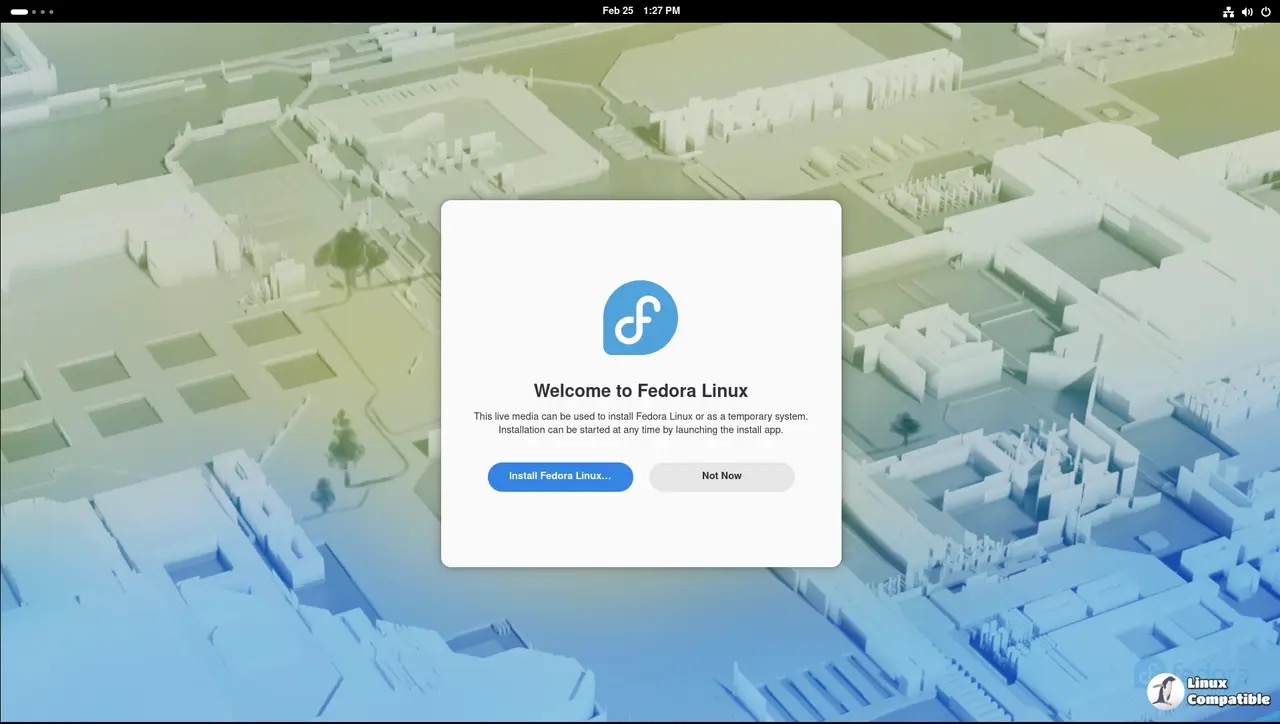


So I just installed Fedora 44 on my main desktop and figured I'd put together a written version of everything I do after a fresh install. This is the same workflow I use whether I'm setting up a new workstation or rebuilding after a reinstall, leaning a little toward what a homelab user would want, but most of this applies to anyone running Fedora as a daily driver.
Quick heads up before we dive in. I generally recommend waiting a week or two after a major Fedora release before updating. Small hiccups on day-zero releases get caught and patched fast, and you skip the friction. If you're new to Linux and not yet comfortable troubleshooting, give it a couple of weeks before jumping on a fresh major release. I'm doing it now because I'm making content about it and I'm comfortable troubleshooting. Just keep that in mind.
Why Fedora
The short version: Fedora gives you the latest kernel and packages without the maintenance burden of a rolling release. Strong upstream-first philosophy and serious Red Hat engineering behind it. It's a beautiful mix of Ubuntu LTS and Arch — bleeding edge, but stable. New GNOME, newer drivers, but you're not constantly chasing dependency churn in the background. Linus Torvalds himself uses Fedora as his daily driver for exactly that reason: it stays out of his way.
I'm not going to spend time bashing Ubuntu or Arch — they're both great for plenty of reasons. I just didn't want to deal with the snap-first direction Canonical is taking, and actually maintaining my system isn't a hobby of mine anymore. I used to run EndeavourOS and enjoyed the tinkering, but these days I don't have the time. Fedora hits the sweet spot.
The other obvious question is "why not Bazzite or Nobara?" Both are excellent — the Nobara video is actually one of the most popular videos on the channel. They're gaming-focused distros though, and gaming isn't my primary use case. If you're a Linux gamer first, absolutely go look at those instead. For everyone else, you can get most of the same results out of vanilla Fedora with a couple of extra packages.

DNF Configuration
This is probably the single biggest quality-of-life change you can make to the package manager, and it makes everything else in this guide noticeably faster. Go ahead and open up the dnf config file:
sudo nano /etc/dnf/dnf.conf
Drop these in under the [main] section:
max_parallel_downloads=10
defaultyes=True
keepcache=True
Real quick on what each of these does. max_parallel_downloads=10 lets dnf grab up to 10 packages at once instead of going one at a time. defaultyes=True means hitting enter on a confirmation prompt accepts instead of declines, which saves a lot of typing. And keepcache=True keeps downloaded packages around so reinstalls don't redownload the same thing.
Update the System
Before doing anything else, make sure everything is up to date. You can either go into the software center and click update, or do it from the terminal:
sudo dnf -y update
Reboot after, especially if there were kernel updates.
RPM Fusion and Codecs
Fedora ships with a lot of free and non-free packages disabled by default for licensing reasons. RPM Fusion is what fixes that, and you really want this enabled if you plan to use Steam, Discord, multimedia codecs, NVIDIA drivers, or pretty much any of the mainstream useful stuff.
Go ahead and paste this in to enable both the free and non-free repos:
sudo dnf install https://mirrors.rpmfusion.org/free/fedora/rpmfusion-free-release-$(rpm -E %fedora).noarch.rpm https://mirrors.rpmfusion.org/nonfree/fedora/rpmfusion-nonfree-release-$(rpm -E %fedora).noarch.rpm
Now do note that as of this writing, the Fedora 44 RPM Fusion release package has a packaging bug where it enables the Rawhide repo (which is for Fedora development, not 44) and disables the proper Fedora 44 free repo. If you skip this next step, you'll hit cryptic glibc errors when you try to install codecs or ffmpeg in a minute. Run a quick sanity check:
sudo dnf repolist --all | grep -i fusion
If you see rpmfusion-free-rawhide as enabled, or rpmfusion-free as disabled, fix it with these three commands:
sudo dnf config-manager setopt rpmfusion-free.enabled=1
sudo dnf config-manager setopt rpmfusion-free-updates.enabled=1
sudo dnf config-manager setopt rpmfusion-free-rawhide.enabled=0
This is exactly the kind of release-day gotcha I mentioned earlier. Hit it on two fresh installs in a row, so it's not a one-off. Hopefully RPM Fusion patches the release package soon, but until then run that check.
Now here's the part most guides skip. Just enabling RPM Fusion doesn't actually swap out the crippled ffmpeg-free package that Fedora ships with. You have to do that explicitly:
sudo dnf swap ffmpeg-free ffmpeg --allowerasing
Then update the multimedia group so things like hardware acceleration and codec-dependent apps actually work cleanly:
sudo dnf group upgrade multimedia
Do note that you'll want to reboot after this swap. GNOME apps can get confused holding references to the old ffmpeg-free libraries and start acting weird. A reboot clears that up. As a general rule on Linux, if something acts strange after a major package swap, reboot before you start troubleshooting. Saved me hours over the years.
While you're at it, install the AppStream metadata so the software center sees everything correctly:
sudo dnf group upgrade core
One quick note on Terra. It's an optional community-maintained repo with packages Fedora doesn't ship, like Discord, the Zed editor, Floorp, swayfx, AppImageLauncher, and osu! lazer. Most people don't need it. Only enable Terra if you specifically want a package that's only available there. If you do, the install command is:
sudo dnf install --nogpgcheck --repofrompath 'terra,https://repos.fyralabs.com/terra$releasever' terra-release
Firmware Updates
If your system supports firmware update delivery through LVFS (most modern hardware does), you can update your device firmware right from the terminal:
fwupdmgr refresh --force
fwupdmgr get-devices
fwupdmgr get-updates
fwupdmgr update
Pretty cool that this just works on Linux now. A few years ago you'd be booting into Windows or messing with vendor utilities to update BIOS or SSD firmware.
NVIDIA Drivers
If you're on an NVIDIA GPU like I am (5070 in my case), this is where you set that up. Make sure you're on the latest kernel first by running sudo dnf update and rebooting if there were updates. Then install the akmod-nvidia driver from RPM Fusion:
sudo dnf install akmod-nvidia
Do note that the current akmod-nvidia package pulls the 595.x driver series, which dropped support for Pascal (GTX 10-series) and older. If you have an older card, install the legacy 580 branch instead:
sudo dnf install akmod-nvidia-580xx
For CUDA support and hardware acceleration in supported applications, also install:
sudo dnf install xorg-x11-drv-nvidia-cuda
After installing, give it a few minutes for the kernel modules to build before rebooting. You can check progress with modinfo -F version nvidia. If a version number prints, the modules are built and you're good to go for a reboot.
Flatpak
Fedora doesn't include all the non-free Flatpaks by default. If you forgot to check "Enable Third Party Repositories" on initial boot, this command enables system-wide access to all the Flathub flatpaks:
flatpak remote-add --if-not-exists flathub https://dl.flathub.org/repo/flathub.flatpakrepo
Stick to system-wide only here. Adding Flathub to both system and --user scope causes app duplication and confuses the software center. Pick one and move on.
AppImage Support
For AppImage support, install fuse:
sudo dnf install fuse-libs
I also recommend grabbing an AppImage manager like Gearlever for cleaner management. It's a Flatpak so:
flatpak install it.mijorus.gearlever
This makes integrating AppImages with the system menu way nicer than just dropping them in a folder somewhere.
Docker
If you use Docker for development or for testing homelab services like I do, the official convenience script is the easiest way to install it. It sets up the repo, imports the GPG key, and installs Docker CE in one shot:
curl -fsSL https://get.docker.com | sudo sh
sudo systemctl enable --now docker
sudo usermod -aG docker $USER
After that, log out and back in for the group change to take effect, or run newgrp docker to apply it in the current shell. Then verify everything is good with docker run hello-world.
I know Fedora ships Podman by default and there's a vocal "just use Podman" crowd. My workflow is built around Docker for development and testing homelab services, so that's what I'm running. Use whichever fits your workflow.
SSH Keys
You'll want to generate an SSH key for use with GitHub, your homelab, your VPS, and anywhere else you need it:
ssh-keygen -t ed25519 -C "your_email@example.com"
eval "$(ssh-agent -s)"
ssh-add ~/.ssh/id_ed25519
To grab the public key for pasting into GitHub or wherever, just cat it:
cat ~/.ssh/id_ed25519.pub
Adding Your Key to a Linux VPS
The easiest way to copy your key to a remote server is ssh-copy-id. It handles appending your public key to the server's ~/.ssh/authorized_keys and sets the right permissions for you:
ssh-copy-id user@your-vps-ip
You'll be prompted for the user's password one last time. After that, you can log in with the key and skip passwords going forward. Pretty simple.
While we're here, this is a great time to set up an SSH config alias so you don't have to type out the user and IP every time. Open up ~/.ssh/config and drop something like this in:
Host myvps
    HostName your-vps-ip
    User youruser
    IdentityFile ~/.ssh/id_ed25519
Now ssh myvps is all you need. Once key auth is working, I do recommend disabling password login on the server entirely. Edit /etc/ssh/sshd_config on the VPS, set PasswordAuthentication no, and restart sshd. This is one of the highest-value security steps you can take on any internet-exposed server.
NetBird
If you're already on NetBird for your homelab or work network like I am, install the client:
curl -fsSL https://pkgs.netbird.io/install.sh | sh
netbird up
If you self-host NetBird like I do, point the client at your management URL instead:
netbird up --management-url https://your-netbird-instance
Full setup walkthrough is over on the NetBird docs site if you're new to it.
Mounting an Unraid SMB Share
This one's a must-have for me since my workstation needs to talk to my Unraid server (HopkiMedia) constantly. First, install the cifs utilities and create a mount point:
sudo dnf install cifs-utils
sudo mkdir /mnt/unraid
Create a credentials file at ~/.smbcredentials with this format:
username=youruser
password=yourpassword
Then lock down that file so only your user can read it:
chmod 600 ~/.smbcredentials
Now add the share to /etc/fstab so it mounts on boot:
//unraid-ip/share /mnt/unraid cifs credentials=/home/youruser/.smbcredentials,uid=1000,gid=1000,iocharset=utf8 0 0
Mount it now without rebooting:
sudo mount -a
And just like that, your Unraid share is mounted and will come back automatically every time you boot. Beautiful.
OBS Studio
If you do any screen recording or streaming, install OBS from RPM Fusion rather than the Flatpak version. The Flatpak requires matching driver extensions and runtime version juggling for NVENC and codecs to work correctly, and I went down that rabbit hole on this exact install. Honestly not worth it. The RPM version uses your system driver and codecs directly:
sudo dnf install obs-studio
That's it. NVENC, full codec support, and screen capture all work out of the box because OBS has direct access to your already-configured system. If you previously installed the Flatpak version, uninstall it first:
flatpak uninstall com.obsproject.Studio
I already gave up on the Flatpak version and switched to RPM. So sorry to anyone who likes Flatpak everything, but for OBS specifically the RPM is just nicer.
GNOME Tweaks and Extensions
Fedora ships pretty much vanilla GNOME, which is great for stability but a little bare-bones for daily-driver use. GNOME Tweaks gives you finer control over things like window button placement, fonts, animations, and startup applications:
sudo dnf install gnome-tweaks
For extensions, Extension Manager is the easiest way to browse, install, and update them all in one place. It's a Flatpak:
flatpak install flathub com.mattjakeman.ExtensionManager
A few extensions I recommend for daily-driver use:
- Blur my Shell: replaces the flat gray overview background with a nice colored blur. Silly to some, but a must-have for me
- AppIndicator and KStatusNotifierItem Support: brings system tray icons back, needed for apps like Discord, Steam, and Slack
- Tray Icons: Reloaded: alternative tray icon implementation. Pick whichever works better for your apps
- Dash to Dock or Dash to Panel: adds a persistent dock or full taskbar if you don't like the default GNOME activities flow
- Clipboard Indicator: clipboard history in the top bar, simple and out of the way
- Caffeine: keeps the screen awake on demand, super useful when you're watching videos or running long tasks
A heads up on extensions: on a fresh major GNOME release, some take a little while to get updated for the new version. A few never do. Stick to popular, actively maintained ones and don't go overboard. Only add what actually improves your day-to-day.
Troubleshooting
A couple of release-day quirks I personally hit on Fedora 44. These may or may not apply to you depending on hardware and timing of your install.
Built-in Bluetooth Not Detected
On a fresh install, my built-in Bluetooth card wasn't detected at all. Reinstalling the bluez packages fixed it:
sudo dnf reinstall bluez bluez-libs
Reboot after, and Bluetooth should show up in Settings. Took me about 5 minutes to figure out, but if you're new to Linux this kind of thing could eat hours. Which is exactly why I recommend waiting a week or two on fresh major releases.
GNOME Apps Acting Weird After the ffmpeg Swap
If Files, Terminal, or other GNOME apps stop opening after the ffmpeg-free to ffmpeg swap, just reboot. The session is holding references to the old libraries and a reboot clears that up. Like I mentioned earlier, the general rule on Linux is if something acts weird after a major package swap, reboot before troubleshooting.
Wrapping Up
That's the full setup I run on a fresh Fedora 44 install. Some of this is generic stuff anyone would want, and some of it leans toward how I use my workstation as a homelab user, but most of it should apply whether you're new to Linux or coming back to it after a while.
If you want to see the video version of this where I walk through the install and the reasoning behind picking Fedora over Ubuntu or Arch, check out I'm switching back to Linux on my main PC on the channel. And if you have your own must-have post-install steps I missed here, drop them in the comments. I'm always curious what other people set up first.
With all that, I do hope you enjoyed this. Have a great one.