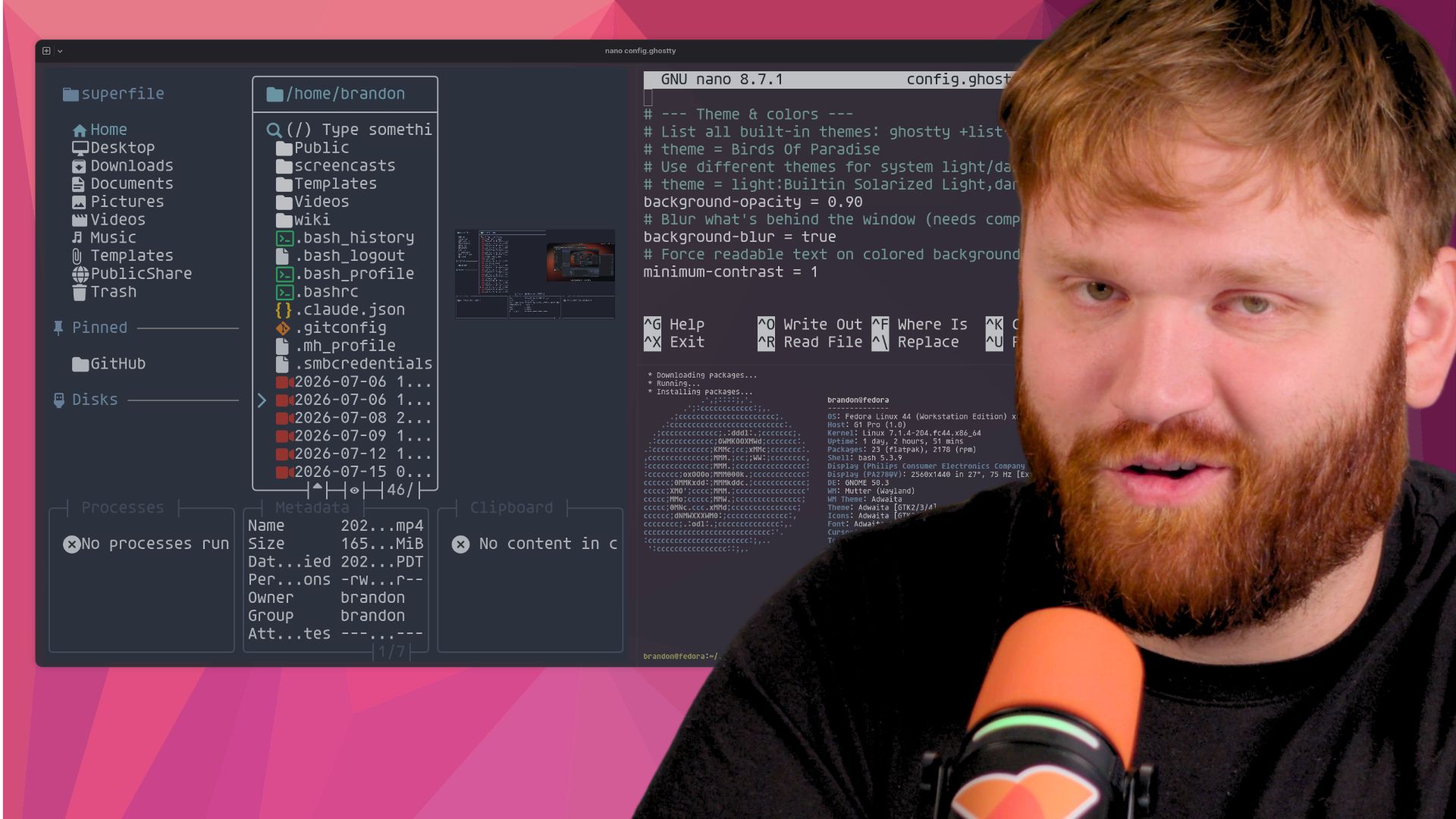


People kept recommending Ghostty to me, but I already had a terminal that worked. Switching terminal emulators just to move text around a little faster or change the window decoration did not feel urgent.
Then I started using modern terminal applications such as Superfile. Its image preview can take advantage of the Kitty graphics protocol to render images directly in a compatible terminal. Ghostty supports that protocol, and it gave me a practical reason to stop ignoring all those recommendations.
There is one important distinction here. Superfile does not strictly require Ghostty. It has an ANSI fallback, and other terminals also implement the Kitty graphics protocol. The point is that Ghostty combines modern terminal compatibility with a fast GPU renderer, sensible defaults, native windows, tabs and splits, and a configuration that can remain surprisingly small.
This guide explains what Ghostty changes, how to install it, the handful of settings worth touching first, and how to verify the result with Superfile.
What Ghostty actually is
Ghostty is a terminal emulator for macOS and Linux. It is the graphical application responsible for drawing the terminal, handling input, exposing terminal capabilities, and hosting programs such as Bash, Zsh, Fish, SSH, tmux, Neovim, and Superfile.
It is not a shell, prompt theme, or replacement for your command-line tools. Moving from another terminal to Ghostty does not require rebuilding the rest of your environment.
Ghostty's project describes its design around three goals: fast, feature-rich, and native. It uses Metal on macOS and OpenGL on Linux for rendering. The macOS application uses native platform UI, while Linux uses GTK4. Ghostty also provides native windows, tabs and splits, hundreds of themes, ligature support, shell integration, and modern terminal protocols.
I would not reduce the recommendation to a synthetic speed claim. Terminal benchmarks vary depending on whether they measure startup, throughput, scrolling, frame rate, or a specific control sequence. The more useful question is whether Ghostty feels responsive while also supporting the applications and workflows you want to use.
Why modern terminal protocols matter
Traditional terminal applications mostly draw text and ANSI escape sequences. Modern TUIs can do more when the terminal exposes newer protocols.
The Kitty graphics protocol is the feature that made this visible for me. It lets a compatible terminal application render images directly in the terminal instead of approximating them with colored text cells. Ghostty supports the protocol, and Superfile includes a Kitty renderer with automatic capability detection and an ANSI fallback.
That makes a good practical test. Open the same image directory in the same Superfile version, at the same font size and window dimensions, first in your existing terminal and then in Ghostty. If your original terminal does not provide a compatible graphics path, the difference should be immediately visible.
Install Ghostty
Ghostty officially distributes signed binaries for macOS. Linux packages come from distributions and community maintainers, so the correct installation path depends on your distribution.
Before copying a command from a random dotfiles repository or blog, check Ghostty's current installation page. Package availability and maintainers can change.
macOS
Download the signed DMG from ghostty.org/download, or install the community-maintained Homebrew cask that repackages the official DMG:
brew install --cask ghostty
Arch Linux
Ghostty is available from Arch's official Extra repository:
sudo pacman -S ghostty
Fedora
As of July 24, 2026, Ghostty's documentation points Fedora users to community packages rather than an official Ghostty binary. One documented option is the scottames/ghostty COPR:
sudo dnf copr enable scottames/ghostty
sudo dnf install ghostty
A COPR is a community package source. Review the project and package details before enabling it, especially if you are following this guide well after publication.
Other Linux distributions
Ghostty's documentation lists packages for Alpine, Gentoo, Nix, Snap, Solus, Void Linux, and other community formats. Prefer your distribution's official repository when it provides a maintained package. Building from source is available, but it is unnecessary for most viewers and adds version-sensitive Zig and GTK dependencies.
Verify the installed version
Open Ghostty and run:
ghostty --version
Ghostty 1.3.1 is the newest version listed in the official release notes as of July 27, 2026.
Try the defaults before changing anything
Ghostty is deliberately designed to work without a user configuration. It includes a default font, built-in Nerd Font glyphs, shell integration for common shells, and platform-appropriate shortcuts.
Use it in that state first. Open your normal shell, run a few commands, connect to a familiar system if appropriate, and launch the terminal applications you already use. This separates an actual compatibility problem from a setting you are changing only because somebody else's dotfiles looked good in a screenshot.
A few features worth trying immediately:
- Open the command palette with
Ctrl+Shift+Pon Linux orCommand+Shift+Pon macOS. - Create a tab and a split from the command palette.
- Launch Superfile with
spfand browse a safe directory containing images. - Confirm your prompt, colors, clipboard, mouse selection, and expected key combinations behave normally.
The command palette is useful for this first pass because it exposes actions without requiring you to memorize every default keybinding.
Explore tabs, splits, and the terminal inspector
Ghostty's native controls make tabs and splits approachable even before you learn the shortcuts. In the Linux interface, the tab overview provides a visual look at everything open in the window, while the adjacent controls can create a new tab or split the focused terminal up, down, left, or right. The exact presentation differs on macOS, but the same tab and split actions are available from the native menus and command palette.
The terminal inspector is also worth knowing about, even if you will not leave it open during normal use. It exposes keyboard events, terminal input and output, renderer details, and live dimensions. That makes it useful for troubleshooting input problems or matching an exact window size for a screen recording.
Create a minimal Ghostty configuration
Ghostty loads its cross-platform configuration from:
~/.config/ghostty/config.ghostty
The older ~/.config/ghostty/config filename is still recognized, but config.ghostty is the current name. Create the directory and open the file in your editor:
mkdir -p ~/.config/ghostty
${EDITOR:-vi} ~/.config/ghostty/config.ghostty
Start small:
theme = Catppuccin Frappe
font-size = 14
window-padding-x = 10
window-padding-y = 8
background-opacity = 0.96
This is an example, not a universal best configuration. Ghostty already embeds a usable default font, so there is no reason to set font-family unless you actually prefer another installed font.
List the fonts Ghostty can see:
ghostty +list-fonts
List the included themes:
ghostty +list-themes
After editing the file, reload the configuration with Ctrl+Shift+, on Linux or Command+Shift+, on macOS. Those are the defaults; my configuration below also binds Ctrl+Shift+R to the same action. Some settings affect only new terminals, so open a new tab or split if an existing surface does not update.
Ghostty can also print the effective configuration:
ghostty +show-config
For the complete default configuration with inline documentation:
ghostty +show-config --default --docs
That is a better source than copying a massive third-party config and trying to understand which settings still exist.
My current Ghostty configuration
After spending more time with Ghostty, this is the configuration I currently use. It is still fairly small; most of the length comes from comments that explain what each setting changes.
Treat it as a reference rather than a required setup. Agave Nerd Font must be installed before Ghostty can use it, and transparency or blur may look different depending on your desktop environment and compositor. Change the font, theme, size, and opacity to suit your own display.
# Ghostty configuration
# Docs: https://ghostty.org/docs/config
# List every option + default:  ghostty +show-config --default --docs
# See what's currently loaded:  ghostty +show-config

# --- Fonts ---
font-family = "Agave Nerd Font"
font-size = 16
# Slightly thicken font rendering (nice on low-DPI displays)
font-thicken = false

# --- Theme & colors ---
# List all built-in themes: ghostty +list-themes
theme = Birds Of Paradise
# Use different themes for system light/dark mode:
# theme = light:Builtin Solarized Light,dark:Birds Of Paradise
background-opacity = 0.90
# Blur what's behind the window (needs compositor support)
background-blur = true
# Minimum foreground/background contrast ratio (1 allows no contrast; 3 is more readable)
minimum-contrast = 1

# --- Cursor ---
# block, bar, underline, block_hollow
cursor-style = block_hollow
cursor-style-blink = true

# --- Window ---
window-padding-x = 8
window-padding-y = 8
# Evenly balance padding on all sides
window-padding-balance = true
# auto, none, client, server
window-decoration = auto
# Reopen windows where they left off: default, never, always
window-save-state = default
# New windows/tabs start in the current directory
window-inherit-working-directory = true

# --- Behavior ---
# Copy selected text to both Linux's primary selection and regular clipboard
copy-on-select = clipboard
# Ask before closing a window with a running process
confirm-close-surface = true
mouse-hide-while-typing = true
# Scrollback buffer size in bytes
scrollback-limit = 10000000
# Shell integration powers title, working directory, and prompt tracking
shell-integration = detect
# Keep the configured cursor shape instead of forcing a bar at shell prompts
shell-integration-features = no-cursor

# --- Keybinds ---
# Format: keybind = trigger=action
# List all defaults: ghostty +list-keybinds
keybind = ctrl+shift+enter=new_split:right
keybind = ctrl+shift+r=reload_config
The settings I notice most are the practical ones. Eight pixels of balanced padding keeps text away from the window edges and gives me room when I crop or zoom into a terminal recording. copy-on-select saves a separate copy shortcut, while Ctrl+Shift+Enter creates a split to the right and Ctrl+Shift+R quickly reloads the file while I experiment.
cursor-style defines a default rather than an absolute override. Shells and full-screen programs can request another cursor shape. The no-cursor shell-integration feature stops Ghostty from forcing a bar at the prompt, but an application can still change the cursor while it is running.
Shell integration is useful, but do not overconfigure it
Ghostty automatically injects shell integration for Bash, Elvish, Fish, Nushell, and Zsh when it can detect the shell. This improves behavior such as preserving the working directory for new terminals, navigating between prompts, prompt resizing, prompt selection, and cursor behavior.
Most users should leave the default detection alone. If a supported shell has a nonstandard executable name, it can be selected explicitly:
shell-integration = fish
Or automatic injection can be disabled:
shell-integration = none
Do not add either line without a reason. The default is detection, and Ghostty's zero-configuration philosophy applies here too.
Verify Superfile's image path
With Ghostty running, start Superfile:
spf
Navigate to a directory containing non-sensitive sample images and select one. Superfile should detect the terminal capabilities and choose its image-rendering path automatically.
For a useful comparison, control the variables:
- Use the same Superfile version in both terminals.
- Use the same shell, directory, image, font size, and window dimensions.
- Capture the old terminal before changing Superfile settings.
- Repeat the test directly in Ghostty.
- If tmux is part of your normal workflow, test both outside and inside tmux rather than assuming the graphics protocol passes through identically.
The goal is not to claim that only Ghostty can display images. Kitty itself and other compatible terminals may provide the same protocol. The result demonstrates why terminal capabilities can now affect what command-line applications are able to do.
Fix clear, nano, and other remote terminal applications
If clear, nano, less, or another full-screen application breaks after connecting over SSH, check the remote terminal type:
echo "$TERM"
infocmp xterm-ghostty
Ghostty normally sets TERM=xterm-ghostty. The failure occurs when the remote machine does not have the matching terminfo entry, so applications do not know which control sequences the terminal supports.
Recommended fix: install Ghostty's terminfo entry remotely
Run this from the local machine inside Ghostty, replacing YOUR-SERVER with the same SSH destination you normally use:
infocmp -x xterm-ghostty | ssh YOUR-SERVER -- tic -x -
This reads Ghostty's local terminfo definition and compiles it on the remote machine. It normally installs into the remote user's terminfo database and does not require root access.
Reconnect and verify it:
ssh YOUR-SERVER

echo "$TERM"
infocmp xterm-ghostty >/dev/null && echo "OK"
clear
nano
The remote tic command comes from ncurses. Install the appropriate ncurses or terminfo package on the remote host if tic is missing. Older versions may print a warning about treating the description field as an alias, which Ghostty's documentation says can be safely ignored.
Automate it through Ghostty
Ghostty 1.3 includes optional shell-integration features that can handle SSH environment and terminfo setup. If you start with my configuration above, combine them with no-cursor on the same line:
shell-integration-features = no-cursor,ssh-env,ssh-terminfo
These features affect interactive ssh commands launched from the integrated shell. They do not automatically cover every program that starts SSH itself, including some uses of Git, rsync, scp, sftp, cloud CLIs, scripts, or cron. For a small number of regular servers, manually installing the terminfo entry is direct and durable.
Compatibility fallback
If you cannot install terminfo on a restricted or older server, configure only that host to use a widely available terminal definition:
# ~/.ssh/config
Host old-server
    SetEnv TERM=xterm-256color
SetEnv requires OpenSSH 8.7 or newer. For a quick one-session test, launch SSH with:
TERM=xterm-256color ssh YOUR-SERVER
The fallback should restore applications such as clear and nano, but it does not advertise Ghostty-specific capabilities. Do not set TERM=xterm-256color globally in your shell configuration. Use the real xterm-ghostty entry wherever possible and limit the fallback to hosts that cannot accept it.
Where Ghostty still has tradeoffs
Ghostty is not the automatic answer for everyone.
- No Windows version yet: Ghostty currently supports macOS and Linux. Windows support is planned, not available.
- Linux packaging is fragmented: macOS receives official project binaries, while Linux users rely on distribution or community packages or build from source.
- Configuration is text-only: The file is simple and reloadable, but Ghostty does not currently provide a full native settings interface.
- Visual effects depend on the environment: Transparency and blur behavior vary across Linux desktop environments and compositors.
- Remote terminal capability needs attention: The
xterm-ghosttyterminfo entry may not exist on older remote hosts. - Another modern terminal may already solve the problem: Kitty, WezTerm, and other terminal emulators remain valid alternatives depending on platform, configuration style, remote workflow, and protocol support.
The real argument for Ghostty is not that every other terminal is bad. It is that Ghostty delivers modern compatibility, useful application features, a responsive GPU renderer, and a native desktop experience without demanding a large configuration before it becomes useful.
Should you switch?
If your existing terminal is reliable and supports every application you use, you do not need to switch for the sake of switching.
But if newer TUIs are exposing compatibility gaps, you want native tabs and splits without adding another multiplexer, or you want a modern terminal that is useful before you copy anybody's dotfiles, Ghostty is worth trying. Start with the defaults, change only the settings you can explain, and use an application such as Superfile to verify that the terminal is doing more than changing the wallpaper around your shell.