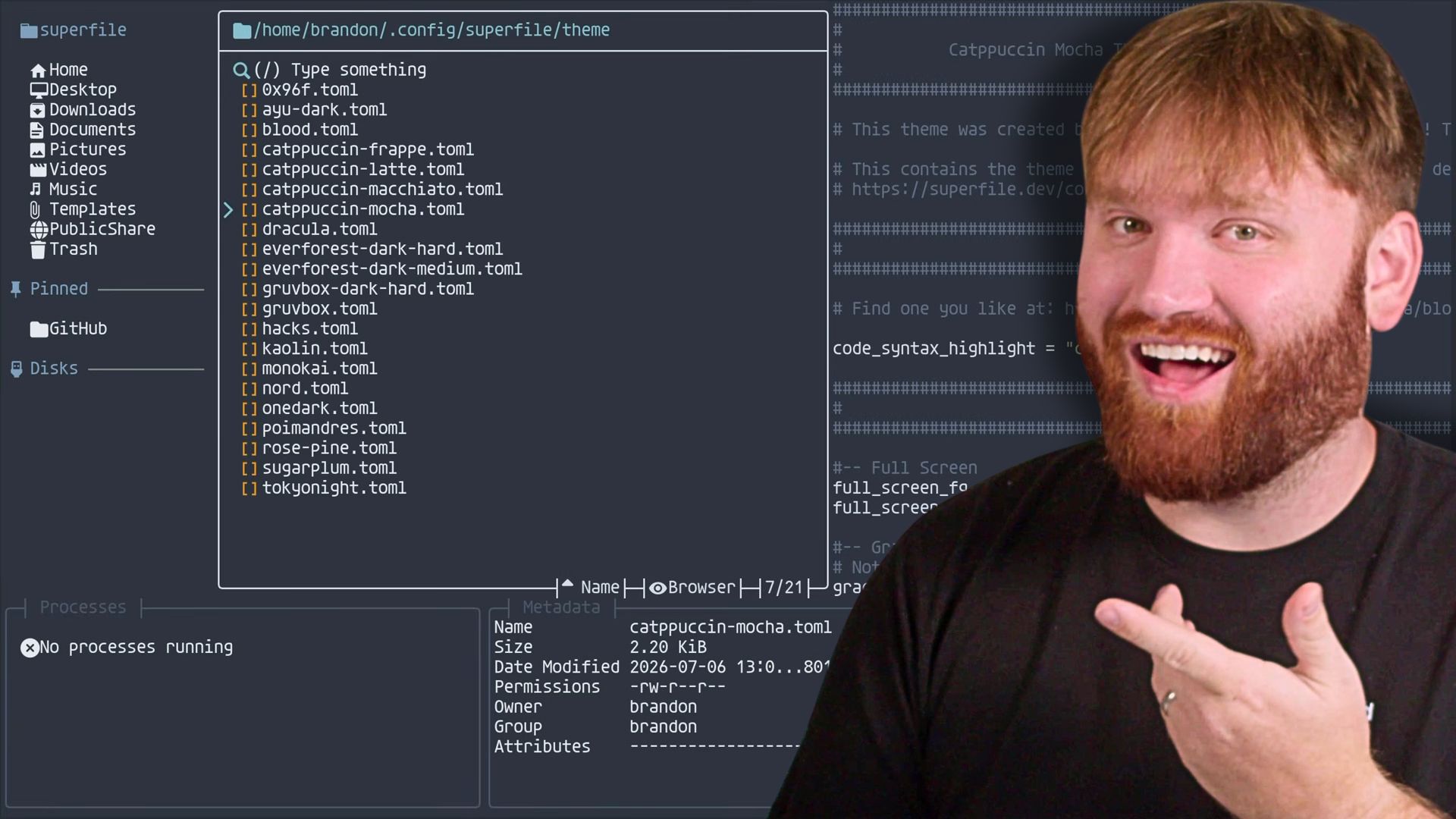


This is a file manager called Superfile, and it looks really nice. Beautiful UI, easy to navigate, and a whole bunch of keyboard shortcuts once you get the hang of it. If you live in the terminal even part of the time, especially for server management, this one is worth a look.
What Superfile Actually Is
Superfile, or spf for short, is a fancy, modern terminal file manager. It's MIT licensed and written in Go, so I have a little bias toward it right out of the gate. It's built on top of Bubble Tea, which is a fantastic framework if you're ever going to build a terminal UI, so the whole thing feels smooth and responsive.
The layout is pretty simple once you see it. The middle column is your actual file browser. Off to the right you get a preview window, so if you hover over an image or a video you get a preview of what's going on. On the left is the sidebar where you navigate to folders and see your pinned directories. You've also got metadata, a processes panel for operations actively running, and a clipboard. It's basically everything you'd expect from a graphical file manager, just living in your terminal.
It's customizable too. Multiple panels, plugin support, and theming, which we'll get into.
You can find it on the official website and over on GitHub.
Installing Superfile
Installing it is pretty easy. On Linux you can use the install script straight from the site, and they have instructions no matter what system you're on, including macOS and Windows.
bash -c "$(curl -sLo- https://superfile.dev/install.sh)"
If you're on macOS you can also grab it with Homebrew, and there's a Nix option if that's your thing:
# Homebrew
brew install superfile

# Nix
nix profile install github:yorukot/superfile#superfile
Do note that if you install it through a package manager like Homebrew and later want to use the install script version, you'll want to remove the package manager copy first. Otherwise running spf might still point at the old one.
Once it's installed, you just run spf to dive into your files. The first time it launches it'll thank you for using Superfile and give you some info that might be relevant. Hit the little question mark any time you want to see hotkeys, and that's about it. That's how you get it up and going.
Running It Over SSH
Here's where it really clicked for me. I installed it on my desktop, but I can also SSH into another machine I know I'll want to run it on, install it there with the same command, and then just type spf to dive into files on that remote box. For server management and quickly moving around directories, this is exactly what I wanted.
Navigation and Hotkeys
What I really like is that the default hotkeys are simple, but you can change them if you're more comfortable with Vim-style keys or something else entirely.
To get out at any point, hit Escape or q to quit.
Navigating between the panels is quick once you know the keys:
sjumps to the sidebar, andsagain brings you back to the file browser in the middlepfocuses the processes panelmfocuses the metadata panel:opens the command prompt, where you can run things likeopenandcd
For creating and closing panels:
ncreates a new panel so you can explore multiple directories side by side, which is great for a quick overview of everything going onwcloses panels back outTabcycles between all your open panels

A couple more that I use constantly:
.(period) toggles hidden files and directories- Arrow keys move up and down, or you can use
kandjif you're keeping your hands on the home row
Opening and Editing Files
If you navigate into a folder and hit Enter on a file, it opens in whatever your default application is. But if you'd rather stay in the terminal, hit e instead and it opens the file in your default terminal text editor, whether that's nano, Vim, or whatever you've set. You can change the editor in the config, which we'll get to.
And of course the preview panel on the side shows previews of just about everything, which is real nice.

Pinning Folders to the Sidebar
You can add folders to the pinned section on the sidebar so your most-used directories are always a click away. Navigate into the folder you want, then hit Shift + P to pin it. Hit Shift + P again to unpin. Small thing, but it adds up when you're jumping around the same handful of project folders all day.
Sorting and Searching
To sort, hit o and you'll get your sort options: size, modified, type. Pick size, for example, and you can immediately see the largest files. Want to reverse it? Capital R flips the sort order.

Searching is really nice. Just hit forward slash / and you get a search box that says "type something." Start typing and it filters down to matches, so finding a README or a specific file in a busy directory is quick. Hit Escape to leave search.

Selection Mode and File Operations
Selection mode is where the bulk operations live. Hit v to enter it. From there you can:
- Hit
Enteron individual files to select them one at a time - Hold
Shiftand move up or down to select a range
Once you've got files selected, the operations are about what you'd expect:
Ctrl + Cto copyCtrl + Xto cutCtrl + Vto pasteCtrl + Rto renameCtrl + DCtrl + Dto delete (press it twice to confirm)
When you cut a batch of files, you'll see them stack up in the clipboard at the bottom. Then you can create a folder, jump into it, and paste. You'll even see the move happen in the processes panel, confirming everything transferred.

Creating Files and Folders
Creating new stuff uses Ctrl + N. Type a name and you get a file. Add a trailing forward slash and you get a folder instead. So screencasts/ with the slash makes a folder, while example.md makes a markdown file you can immediately open with e and edit in nano.
Customizing the Config
There are a few commands beyond just launching into it. Run spf pl and it lists where everything lives, so you can find your config file and hotkeys path. It's all under ~/.config/superfile. In there you'll find three files: config.toml, hotkeys.toml, and your theme.
Open the config (hit e to edit it in your default editor) and you can change a bunch of things:
- Default editor so it doesn't try to open Vim when you want nano
- Directory editor so you can set your GUI file manager, like Nemo or Dolphin, for opening directories
- Change directory on quit, which I actually set to true because it's genuinely handy
- Toggle image and file previews if you want them off
- Disable panels entirely if you want something really lightweight
- Default directory, which is your current working directory by default
There's a lot more in there than I'm covering here, but those are the ones I actually touch.

Custom Hotkeys
The hotkeys.toml file is worth opening even if you don't plan to change anything. It's a really nice way to see every action available, including plenty of stuff I didn't cover in the video. Changing a keybind is as simple as editing the value.
Themes
Superfile ships with a bunch of themes already installed. Blood, Dracula, Nord (which I really like), and more. The default is Catppuccin Mocha. To change it, open the config, find the theme variable under the styling section, and set it to something like nord. Save, relaunch, and you're running the new theme.
I do recommend using Nerd Fonts with this for the icons to render properly. And since the themes are just simple config files with base colors and color codes, it's really easy to tweak an existing one or build your own.
Final Thoughts
This is what I've been using to browse and explore files for the last little while, primarily on my Mac but I'm getting it onto some other machines too. I've just been having a good time with it, especially for server management where I'm quickly changing directories and doing basic Linux file stuff.
It's kind of the best of both worlds. A good balance between the quickness and speed of doing everything in the CLI, and the features and creature comforts you'd get from an actual graphical file browser.
If you liked this, you might like my older video going over a bunch of other awesome terminal applications and TUI tools. With all that, I do hope you have an absolutely beautiful day. Goodbye.