


I want to use the same domain name for my homelab services whether I'm at home or away. If I'm moving files to a server on my own network, I want those transfers to stay on the LAN. Having to change the server address in a sync client gets old pretty quickly.
Split DNS lets the same hostname resolve to different addresses depending on which DNS resolver answers. Your home resolver can return a private address, while public DNS keeps returning the public one.
I'm using OpenCloud as the example here, with NGINX Proxy Manager handling local HTTPS and NetBird providing private access while away. I also want public file shares to keep working while sign-in stays private. NetBird can block a login path such as /login on the public proxy, while my devices reach NPM over the LAN or NetBird's private route, where that block doesn't apply.
The DNS approach also applies to other web services behind a reverse proxy. Each application still needs its own backend address and proxy settings, including the paths it uses for sign-in.
This is the configuration I'm planning for my network, with the connection checks below still to complete. In particular, leaving NetBird connected at home needs its own routing check. Getting a private IP from DNS doesn't prove the transfer is taking the direct LAN path.
What split DNS changes
At home, the local DNS resolver returns your reverse proxy's LAN address for a service's hostname. The proxy handles HTTPS and forwards the request to the application. In this walkthrough, that local proxy is NGINX Proxy Manager, which I'll shorten to NPM.
The split DNS setup also works with Caddy, Traefik, or another reverse proxy. Use your proxy's LAN address wherever I write NPM_LAN_IP, and configure the same hostname, a valid HTTPS certificate, and the application's backend there. Adapt the NPM steps and Nginx snippets below to your proxy's own certificate, access, and upload settings.
While you're away with NetBird connected, NetBird sends queries for that hostname to the home resolver. A routing peer carries the connection into the LAN. Anyone using public DNS keeps getting the existing public address.
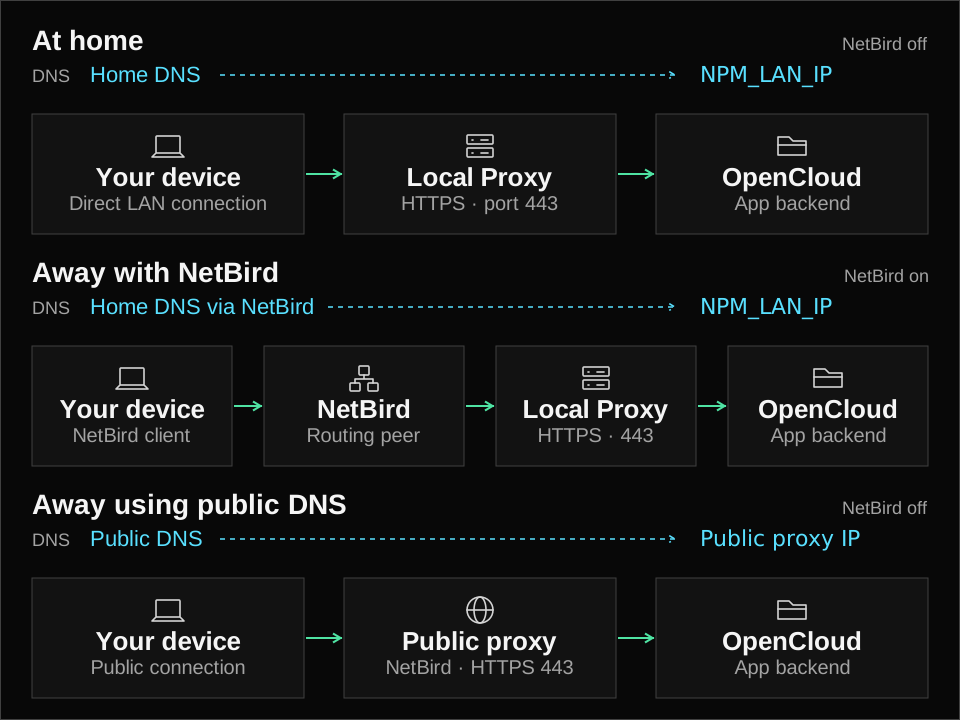
DNS supplies an address, and your routing configuration determines how you reach it. NetBird DNS doesn't check where you are and automatically pick the fastest connection. You also still need the access policies and firewall rules that allow the connection.
You can stop after setting up home DNS if local access is all you need. The NetBird section extends that private access to devices while they're away. Public access is a separate choice: this example keeps an existing public proxy running, but adding a private DNS record doesn't publish a service to the internet.
Why I'm keeping the same hostname
Using the same hostname means your bookmarks and application clients can keep one server address. It can also save you from configuring an application to accept a second URL.
OpenCloud is a useful example of that. I use hopki.net for other local services, so adding opencloud.hopki.net would fit that naming scheme. But OpenCloud's web API configuration uses OC_URL, and the built-in identity provider's login callbacks and browser origins also reference it.
A DNS alias and another proxy host won't update those settings. You can end up opening the local name and having API or login traffic head back to opencloud.hopkins.sh anyway. Keeping the same hostname lets us change the connection address while keeping the existing OpenCloud URL configuration.
For another application, check its external URL and authentication settings before adding an alias. We'll keep the existing URL and change its DNS answer here.
Before changing anything
You need a working application, a reverse proxy running on your LAN (NPM in this walkthrough), and a domain you control. You also need a local DNS resolver that can override a hostname and that your home devices actually use. The remote steps assume you already have NetBird and a routing peer that can reach your LAN.
For this example, OpenCloud already works through a public NetBird reverse proxy. If you're starting with the application install, I've got a separate OpenCloud Docker Compose guide. To build the private network first, start with my self-hosted NetBird guide.
I'm using these addresses for the OpenCloud example:
| Setting | Value |
|---|---|
| OpenCloud URL | https://opencloud.hopkins.sh |
| OpenCloud backend | http://10.173.10.32:9200 |
| Local HTTPS proxy | Existing NGINX Proxy Manager instance |
| Public HTTPS proxy | Existing NetBird reverse proxy |
Use your own hostname and backend address throughout. NPM_LAN_IP means the LAN address where NPM accepts HTTPS on port 443. Depending on your Docker networking, that could be the Docker host's address or a container address that your LAN can reach. HOME_DNS_IP means the LAN address of your home resolver, whether that's your router, AdGuard Home, or Pi-hole.
The private DNS answer needs to point at NPM, where the browser connects on port 443. NPM then sends the request to the application's backend. DNS doesn't specify that backend port.
For OpenCloud, keep OC_DOMAIN=opencloud.hopkins.sh, the public DNS record, and the public NetBird proxy service in place. Its backend on port 9200 is where NPM forwards the request afterward.
Get the certificate ready in NPM
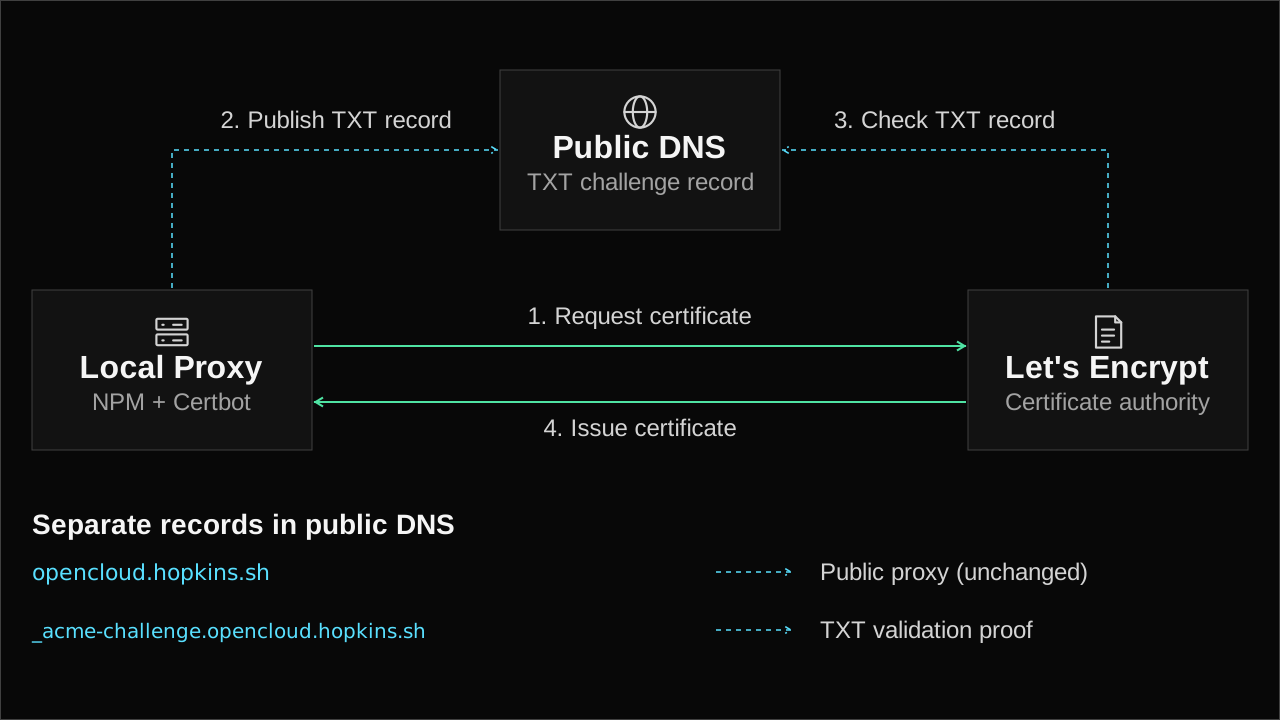
If you already have a valid certificate for opencloud.hopkins.sh or *.hopkins.sh in NPM, you can reuse it. Your *.hopki.net certificate won't cover this hostname.
Otherwise, go to SSL Certificates → Add SSL Certificate → Let's Encrypt:
- Enter
opencloud.hopkins.shas the domain. - Enable Use a DNS Challenge.
- Select your DNS provider and enter the API credentials it requires. Limit those credentials to the necessary zone or records where your provider supports it.
- Accept the terms, save, and wait for issuance to finish.
The nice part about DNS-01 validation is that public DNS can keep pointing at NetBird. You don't need to forward internet ports to NPM to get this certificate. NPM uses Certbot to issue and renew it, so keep the DNS credentials valid for renewal too.
Add the local proxy host
In NPM, open Hosts → Proxy Hosts → Add Proxy Host. The domain should be the same hostname you already use, and the forwarding address and port should reach your application from NPM.
For the OpenCloud example, enter:
| Setting | Value |
|---|---|
| Domain Names | opencloud.hopkins.sh |
| Scheme | http |
| Forward Hostname / IP | 10.173.10.32 |
| Forward Port | 9200 |
| Cache Assets | Off |
| Websockets Support | On |
| Block Common Exploits | Off |
These are OpenCloud's settings. Another application may use HTTPS to its backend, a different port, or different websocket and filtering options. Check that application's reverse proxy requirements when adapting the table.
The Block Common Exploits setting also comes up in my OpenCloud installation guide. With it enabled, OpenCloud's desktop authentication can fail with a 403 even when the web interface works. Leave it off for this host.
For the Access List, use an IP-only allowlist covering your LAN and the intended NetBird connections. With masquerading enabled on the routing peer, NPM sees that peer's LAN IP as the source of remote requests. Make sure the list allows the source address NPM actually receives.
Skip NPM's Basic Authentication for OpenCloud, since the application handles login. When adapting this to another service, account for how its clients authenticate before adding a second login at the proxy.
If NPM is only reachable from trusted private networks, its Publicly Accessible option means there's no additional NPM access check. That label doesn't create a public DNS record or open a port on your router.
On the SSL tab, select the certificate and enable Force SSL and HTTP/2 Support. The certificate needs to cover the hostname your browser uses, regardless of which IP DNS returns.
OpenCloud upload settings
For OpenCloud, go to Advanced → Custom Nginx Configuration and drop this in:
client_max_body_size 0;
proxy_request_buffering off;
proxy_buffering off;
proxy_read_timeout 3600s;
proxy_send_timeout 3600s;
This removes Nginx's request body size limit and disables request and response buffering. The longer timeouts give slow transfers more room between read or write operations. OpenCloud's external proxy documentation also calls out buffering and timeout settings for long connections.
These upload settings are separate from split DNS. Use the settings your application needs if you're following along with another service.
NPM generates the server block and proxy headers for you, so the Advanced field only needs those directives for this example. Save the host and check that it shows Online.
There's one more connection to account for: NPM has to reach the OpenCloud backend. In this setup, the VM's firewall restricts port 9200, so allow the source IP used by NPM's connection. Docker networking can make that the container's address or its host's address. Keep the existing NetBird routing-peer allowances too.
Test HTTPS before touching DNS
From a device on your LAN, replace NPM_LAN_IP with NPM's actual address and run:
curl --resolve opencloud.hopkins.sh:443:NPM_LAN_IP \
  --fail --show-error \
  https://opencloud.hopkins.sh/.well-known/openid-configuration
--resolve sends this request to NPM while keeping the real hostname for HTTPS. For OpenCloud, you should get the OpenID configuration response without a certificate error. For another app, replace the hostname and use its normal page or a documented test endpoint. The /.well-known/openid-configuration path is the OpenCloud check in this example.
Leave certificate verification enabled; adding -k would hide a problem we need to catch here.
A 502 points toward the backend connection or firewall. A 403 can come from the access list, so check that NPM is allowing your device. The Online status alone doesn't prove NPM can reach OpenCloud.
Point home DNS at NPM
On the resolver your home devices use, add an override for the service's hostname pointing to NPM's LAN address. For this example:
opencloud.hopkins.sh → NPM_LAN_IP
Only add it to the home resolver. If you're keeping public access, leave public DNS pointing to the existing public proxy.
Use whichever resolver already handles DNS for your home network:
- Pi-hole v6: open Settings → Local DNS Records. Under Local DNS records, enter
opencloud.hopkins.shin Domain and NPM's LAN IP in IP, then click the + button. - AdGuard Home: open Filters → DNS rewrites → Add DNS rewrite. Enter
opencloud.hopkins.shas the domain and NPM's LAN IP as the answer, then click Save. - Technitium DNS Server: open Zones → Add Zone, enter
opencloud.hopkins.shas the zone, leave Primary Zone selected, and click Add. Open that zone and choose Add Record. Set Name to@, Type toA, and IPv4 Address to NPM's LAN IP, then click Add. Using the full hostname as the zone keeps the other names underhopkins.shresolving normally.
Make sure DHCP gives your home devices this resolver. Do note that a public IPv6 answer, browser Secure DNS, or an existing NetBird DNS setting can send a client somewhere else. Check both A and AAAA answers, and make sure any IPv6 answer also follows the intended private path or is suppressed locally.
Keep the override specific to the hostname you're configuring, opencloud.hopkins.sh here. The other names under hopkins.sh should continue resolving as before.
If OpenCloud says "Not logged in"
Do note that the OpenCloud server can pick up this DNS override too. In my setup, its own OIDC user-information requests started going through NPM. The login page worked, but those requests got a 502, leaving me with a Not logged in message.
The VM's backend firewall only allowed the NetBird routing peers. I added NPM's source IP, 10.173.10.102 in my case, to the TCP 9200 allowlist and made that rule persistent. Keep the existing routing-peer allowances too.
From your OpenCloud Compose directory, check the path the container uses:
docker compose exec opencloud curl --fail --show-error \
  https://opencloud.hopkins.sh/.well-known/openid-configuration
Expect OpenID configuration JSON with certificate verification enabled. A 502 here means you still need to check NPM's backend connection and the backend firewall.
Let NetBird devices use home DNS
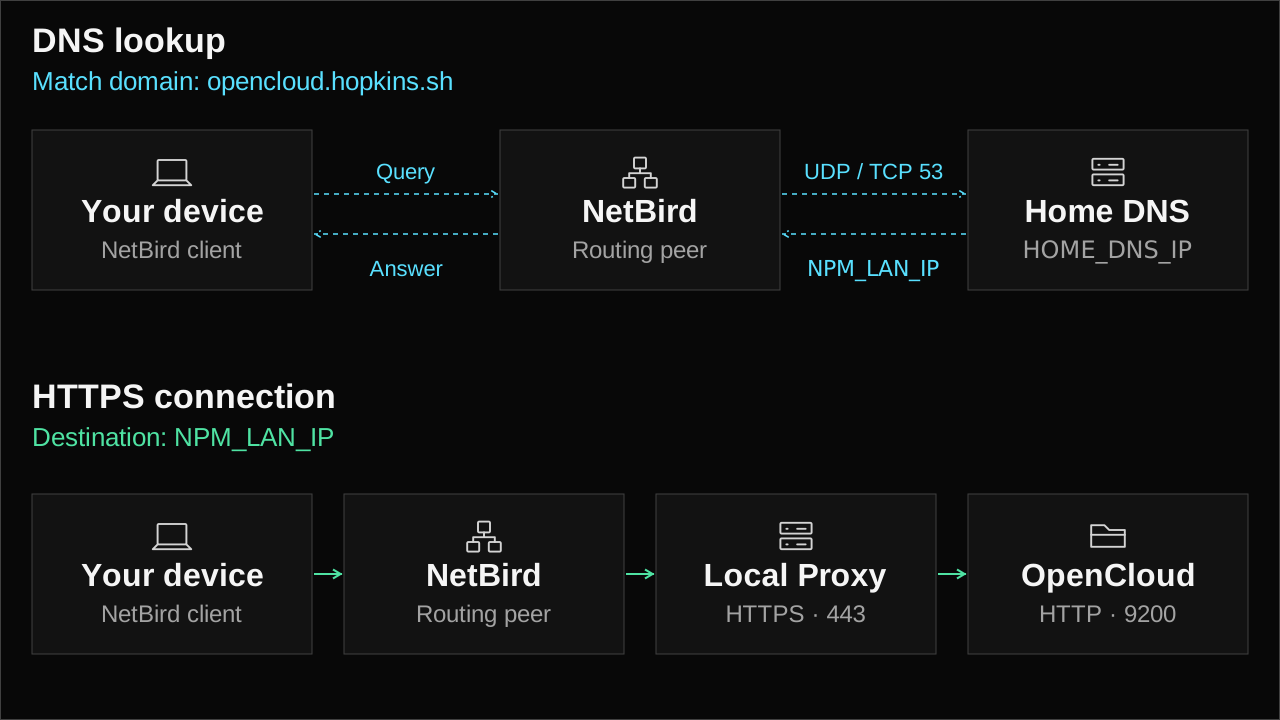
Now we can give personal devices the same private answer while they're away. I'm keeping the record in home DNS so there's only one override to update later.
In your NetBird dashboard, choose a group containing the personal devices that should use this rule. I'll call it Personal Devices. A NetBird peer is simply a device running NetBird.
Allow access to the resolver and NPM
In the existing Home Network, check that resources and access policies let Personal Devices reach these destinations:
| Destination | Required access |
|---|---|
HOME_DNS_IP | UDP 53 and TCP 53 |
NPM_LAN_IP | TCP 443 |
A resource identifies the private destination. An access policy grants permission to reach it, and a routing peer carries traffic into the LAN. Reuse existing resources if they already cover these addresses. Otherwise, add individual IP /32 resources and grant the ports above, using separate TCP and UDP policies as needed.
If HOME_DNS_IP or NPM_LAN_IP is the routing peer's own LAN address, keep a resource covering that IP so clients receive a route. Also add a separate peer-to-peer policy from Personal Devices to a group containing that routing peer, allowing the relevant DNS or HTTPS ports from the table. A network resource policy alone doesn't grant access to services on the routing peer itself.
For that case, a userspace routing peer (Windows, macOS, or Linux netstack) also needs NB_ENABLE_LOCAL_FORWARDING=true in its NetBird service environment. Restart the service after setting it. See NetBird's guidance for reaching the routing peer itself. Destinations on other LAN machines continue using the resources and network resource policies described above.
Keep the current routing peers and the public proxy's OpenCloud backend resource intact. These personal devices need HTTPS access to NPM for this path; NPM makes the connection to port 9200. The home resolver also needs to accept queries coming from the routing peers.
NetBird's internal DNS guide covers reaching a private resolver through a routing peer. Adding a nameserver entry alone doesn't make that server reachable.
Forward the service's DNS queries
Open DNS → Nameservers → Add Nameserver. Use the service's full hostname as the match domain. For this example:
| Setting | Value |
|---|---|
| Provider | Custom DNS |
| Nameserver address | HOME_DNS_IP, port 53 |
| Distribution Groups | Personal Devices |
| Match Domain | opencloud.hopkins.sh |
| Search domain | Off |
A match domain sends queries for that name and its subdomains to the selected resolver. Leave your existing primary DNS settings in place for everything else, and keep NetBird DNS management enabled on these devices. We'll use the full hostname, so there's no need for a search domain.
Match opencloud.hopkins.sh specifically. Sending all of hopkins.sh home would also change resolution for names such as the NetBird management hostname.
You can add hopki.net as another match domain if your home resolver already handles the other private services. Each service still needs a permitted route and the appropriate ports.
NetBird also has Custom Zones, which let it host private records directly. That's another option if you don't want to forward queries home, although you'd maintain the OpenCloud record in both NetBird and your home resolver. Use one approach for this name. A conflicting Custom Zone takes precedence over the nameserver rule.
Keep selected paths off the public proxy
We can use the separate connection paths to restrict part of an application on the public proxy while keeping it available privately. For an application whose login page is /login, open its public HTTP service in NetBird and add a target with that path and the same backend. Under Optional Settings → Access, choose Block access. Keep the existing catch-all target for the rest of the application. NetBird returns 403 for the blocked target without contacting the backend; see per-target access actions.
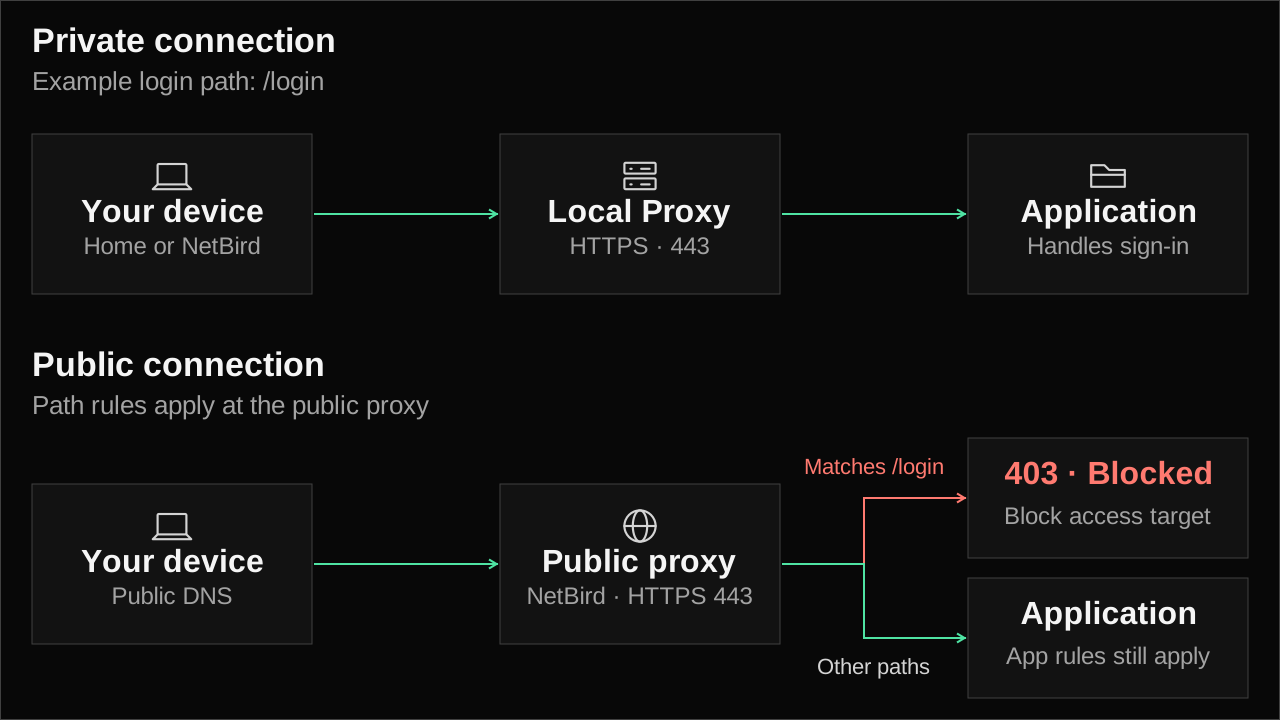
The block belongs to the NetBird reverse proxy. It doesn't change NPM or the application's own login settings. Your private DNS answer and route need to take you to NPM for this to work. Being connected to the NetBird client, or using NetBird DNS, won't bypass the rule if the connection still goes through the public proxy.
Paths are case-sensitive literal prefixes, so /login also matches /login/callback and /login-extra, but not /Login. The longest matching prefix wins, so check for more specific targets. Upgrade every proxy instance in the selected cluster before relying on access actions; older proxies ignore them.
OpenCloud uses OIDC, so check its actual sign-in and authentication endpoints before applying the /login example. I want public file shares to stay available, so test a share link from an away device with NetBird off, then test a fresh login and the sync client through the private route. Confirm that the block covers the sign-in methods you intend to restrict.
Check each connection path
I do recommend testing what you actually use the application for in each mode. For OpenCloud, that's signing in, uploading a file, and downloading it again. For another service, include its desktop or mobile client if you use one; the web login page alone won't tell you whether that client works.
- At home with NetBird off, confirm the hostname resolves to NPM's LAN IP and test the application. For OpenCloud, sign in, upload a file, and download it again.
- Away with NetBird on, use cellular or another network. The hostname should still resolve to NPM's LAN IP, and the transfer should work through the private route.
- Away with NetBird off, confirm public resolution and test the existing public proxy if you're keeping public access. If you added path blocks, check that those paths return
403and that the pages or file shares you intend to expose still work. Give cached DNS answers time to expire after switching modes. - Back at home with NetBird on, check the route to NPM as well as the DNS answer. This is the extra check that tells you whether traffic stays directly on the LAN.
On a Mac, query the system resolver with:
dscacheutil -q host -a name opencloud.hopkins.sh
On Windows, use:
Resolve-DnsName opencloud.hopkins.sh
NetBird can register a domain-specific resolver on macOS. Tools such as dig and nslookup can query a different resolver, so they may disagree with the browser. Use the system lookup and check the browser's actual connection address when you verify the result. NetBird explains this in its DNS troubleshooting guide.
To inspect the route on your Mac, replace NPM_LAN_IP and run:
route -n get NPM_LAN_IP
If the connection goes through NetBird while you're at home, one manual option is to deselect the private routes covering NPM and home DNS on that device. Reselect them when you're away. That changes the client's route selection, so check what else those routes cover before disabling them. The NetBird network selection commands cover listing, selecting, and deselecting them.
If the name resolves to the private address but HTTPS fails, check the selected route, NetBird policies, NPM's allowlist, and the backend firewall. DNS can be correct while the connection is blocked further along.
Also, this isn't automatic failover. While the private rule applies, losing home DNS or the private route can stop access even if the public proxy is healthy.
Undoing the DNS changes
To back out the NetBird change, disable or remove the new nameserver configuration for Personal Devices. If you used a Custom Zone instead, remove the corresponding private record. Clear cached answers and confirm public resolution from an away device with NetBird off.
To undo the home override too, remove it from your local resolver and clear the affected devices' DNS caches or reconnect them. Keep the public proxy and its routing resources running throughout, so the existing public path remains available.
Use this for another service
For the next application, add its hostname to NPM, select a certificate that covers it, and point the proxy host at that application's backend. Add a matching override in home DNS and, for private remote access, include that hostname in the NetBird nameserver's match domains. If it uses the same NPM address, the existing route and port 443 policy can cover it too.
Keep the application-specific settings with that application. OpenCloud's port 9200, OC_DOMAIN, OpenID test endpoint, and upload directives belong to this example. Another service can use the same DNS and routing setup with its own proxy requirements.
Once the checks pass, you can keep using the existing hostname in your bookmarks and clients. I do recommend trying one service first, checking it from home and away, and then adding the rest. If you're following along with OpenCloud, the OpenCloud setup guide covers the application install. With all that, have a great one.